How to use the spin wheel
A step by step guide to every part of the wheel, from adding the first name to going full screen.
Add your names
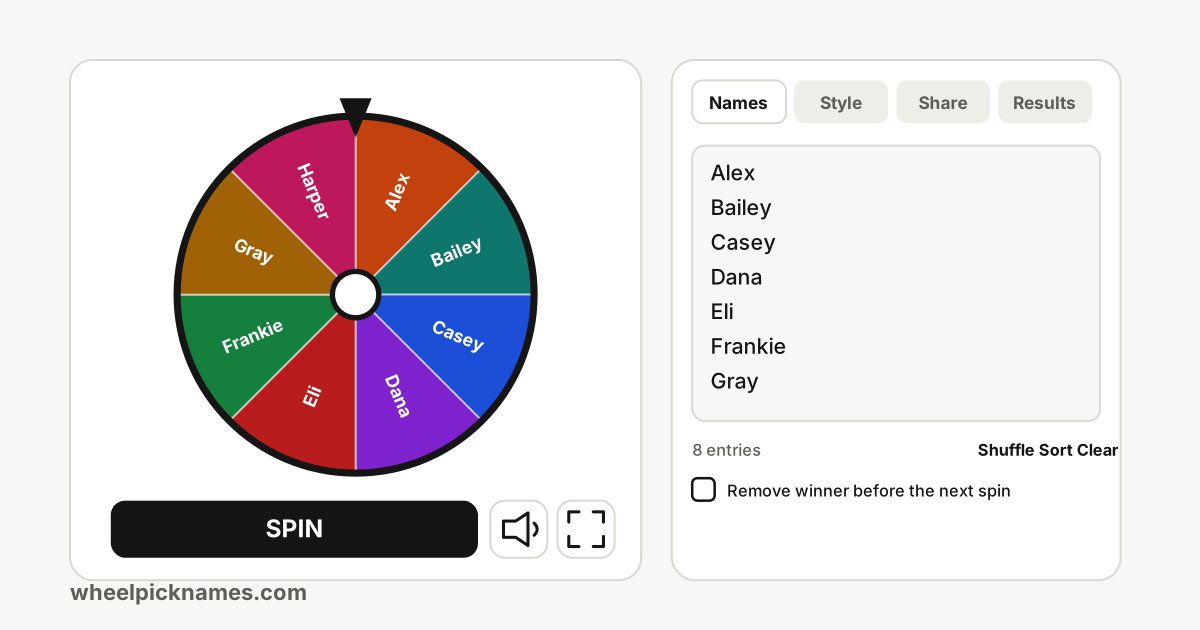
Open the spin wheel and look at the Names tab. Each line of the text box becomes one slice. Type or paste your names, one per line, and the wheel redraws as you type. Blank lines are ignored, extra spaces are tidied up, and each entry can be up to 120 characters long.
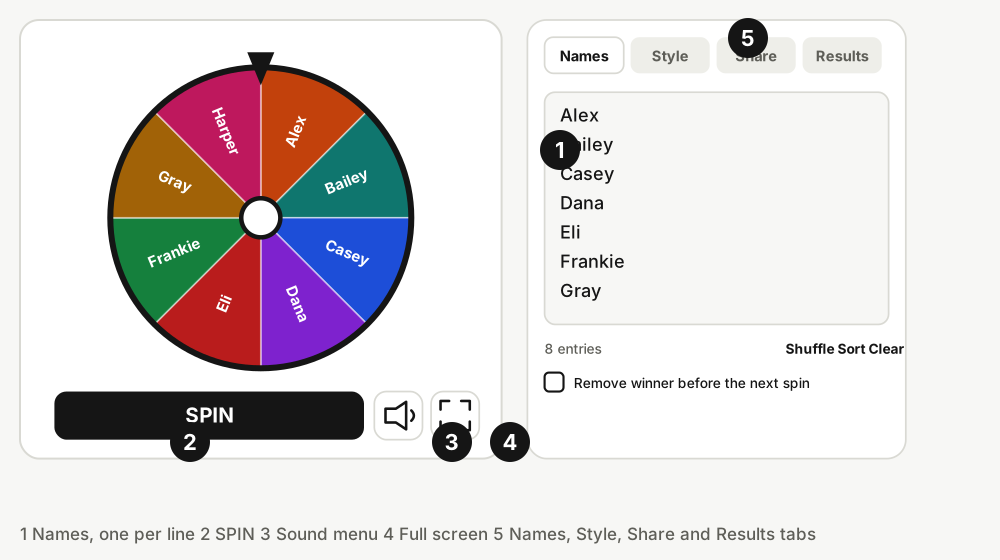
You need at least two entries to spin. The wheel holds up to 2,000 entries. Past about 60 entries the slices become too narrow for text, so the wheel shows colours only while it spins fast.
If you would rather not start from scratch, pick a ready-made template such as the yes or no wheel or the what to eat wheel. A template is just a wheel with a list already filled in, and you can edit it freely.
Spin the wheel
Press the large SPIN button, or press Ctrl and Enter together (Cmd and Enter on a Mac) from anywhere in the tool. While the wheel turns, the button fills up like a progress bar so you can see how long is left. Click the wheel itself only on an embedded wheel, where it works as a spin button too.
When the wheel stops, the winning slice stays bright while the rest is dimmed, a small burst of confetti plays, and a card slides up with the winner's name. The card has two buttons: Remove takes the winner out of the list, and Again spins straight away.
On a long list the names cannot be printed on the slices, so the wheel helps you read them. In the last two to six seconds of the spin it slows to a crawl and the view zooms in on the pointer, turning the names the right way up so you can read the ones passing by. The one that stays under the pointer is the winner, and it is highlighted while the rest dim. After a moment the view zooms back out. This is also the easiest way to see that nothing is hidden: every name really is on the wheel. You can turn the zoom off in the Style tab.
If your device is set to reduce motion, spins are short and calm, and the confetti and the zoom are skipped.
Shuffle, sort and weight the list
Under the text box you will find Shuffle, Sort and Clear. Shuffle changes the order of the slices, which is handy when similar names sit next to each other. Sort puts them in alphabetical order. Neither changes anyone's chances.
Every slice is equally likely by default. To give an entry better odds, write it on more than one line. A name that appears twice has two slices, so it is twice as likely to win as a name that appears once. This is the simplest way to run a weighted draw, for example when someone earned extra tickets.
Got the names in a spreadsheet? Paste a whole column straight into the text box, or press Import to read a file. Import accepts CSV, TSV, text and Excel (.xlsx) files. Pick the sheet and the column that holds the names, look at the preview, and choose whether to replace the list or add to it. You can drop a file onto the list as well. The file is read in your browser and never uploaded, and the code that reads it only loads when you open the dialog.
Remove winners and run a whole draw
Tick Remove winner before the next spin to take each winner out automatically. This turns the wheel into a draw without repeats: spin once for each prize and nobody can win twice. It also works for putting players in order, handing out chores or going through a list of topics one by one.
You can also use the Remove button on the result card for a single removal. If you change the list after a spin, the old result is cleared, so the Remove button never takes out the wrong entry.
Colours, spin time and sound
The Style tab holds the colour palette and the spin time. There are eight palettes, from calm to bright, and you can also pick your own two to twelve colours with the colour pickers. Light colours automatically get dark labels so the names stay readable. Spin time runs from 1 to 30 seconds. A longer spin builds suspense in front of an audience; a short one keeps a quick decision quick.
Sound is off until you switch it on. The speaker button next to SPIN does that with one press and shows a single control: the speaker icon switches sound on and off, and the slider next to it sets the volume. Sliding all the way to zero is the same as off, and the volume you chose is remembered. Two options sit under it: ticks while the wheel turns, and a short chime for the winner. The same control is in the Style tab.
Full screen for a big screen
The button with the corner arrows opens the full screen view. It shows only the wheel, the spin button and the sound button, with no panels and no ads, which is what you want on a projector or a shared screen. Choose a background: the page theme, dark, light, or a pure green for streaming software that can remove green.
Press Escape or Exit full screen to return. Some browsers, such as Safari on an iPhone, do not offer the browser's own full screen for web pages. There, the wheel fills the whole window instead.
Save, share and start over
Your wheel is saved on your own device as you edit, so it is still there next time. Each template keeps its own saved copy, and the Reset button on a template restores the original list.
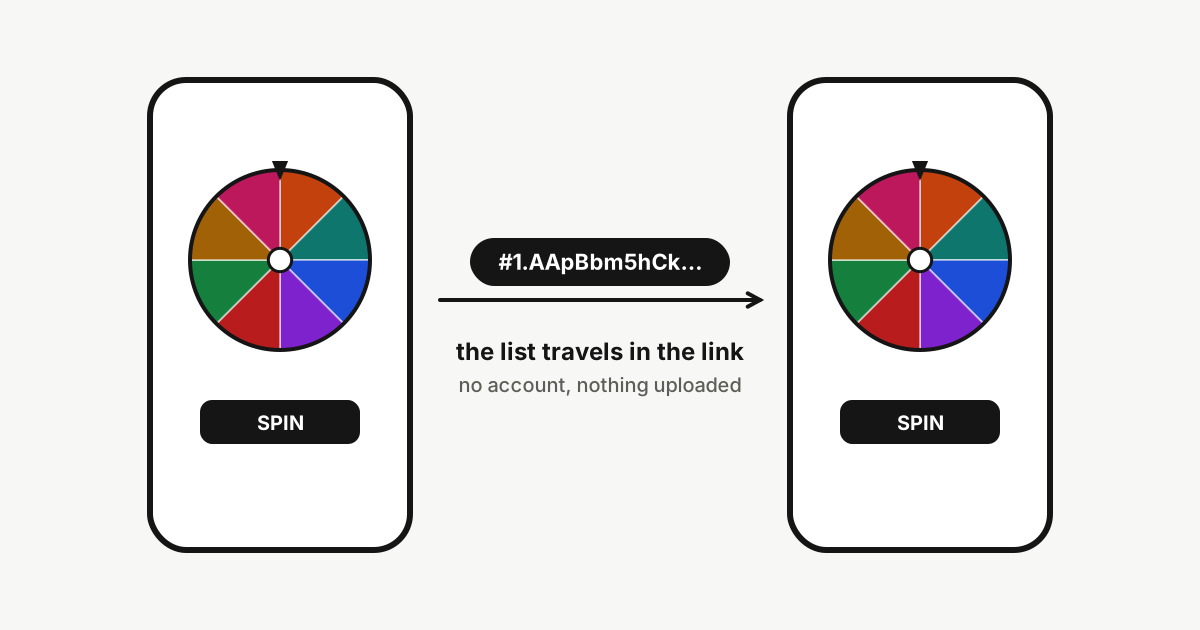
To send a wheel to someone, open the Share tab and press Create link. The link carries the list and settings inside the address, so nothing is uploaded. The guide to sharing and saving wheels explains what the link contains and its limits.
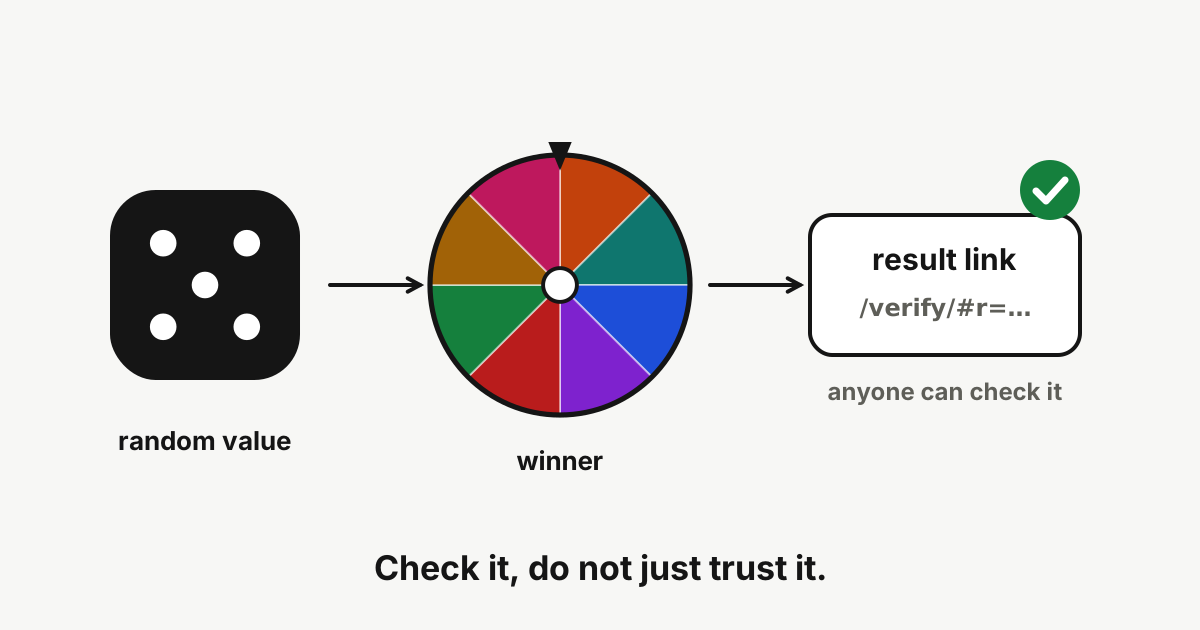
Every spin is listed on the Results tab, newest first, and kept with the wheel on your device. Download the list as a CSV, or copy a link that lets anyone check a single result. How that works is described in the guide to checking a spin.
To keep a wheel, use Save above the tabs. It writes one small file with the names, weights, colours, settings and results, and Open reads it back later, here or on another device. New starts a blank wheel. If the wheel has changes you have not saved, you are asked before anything is replaced.
Tips for phones and keyboards
- On a phone, the SPIN button sits right under the wheel so you can reach it with one thumb.
- Paste a long list from a spreadsheet column: each row becomes a slice.
- Use Shuffle before a draw if you want a different slice order each time.
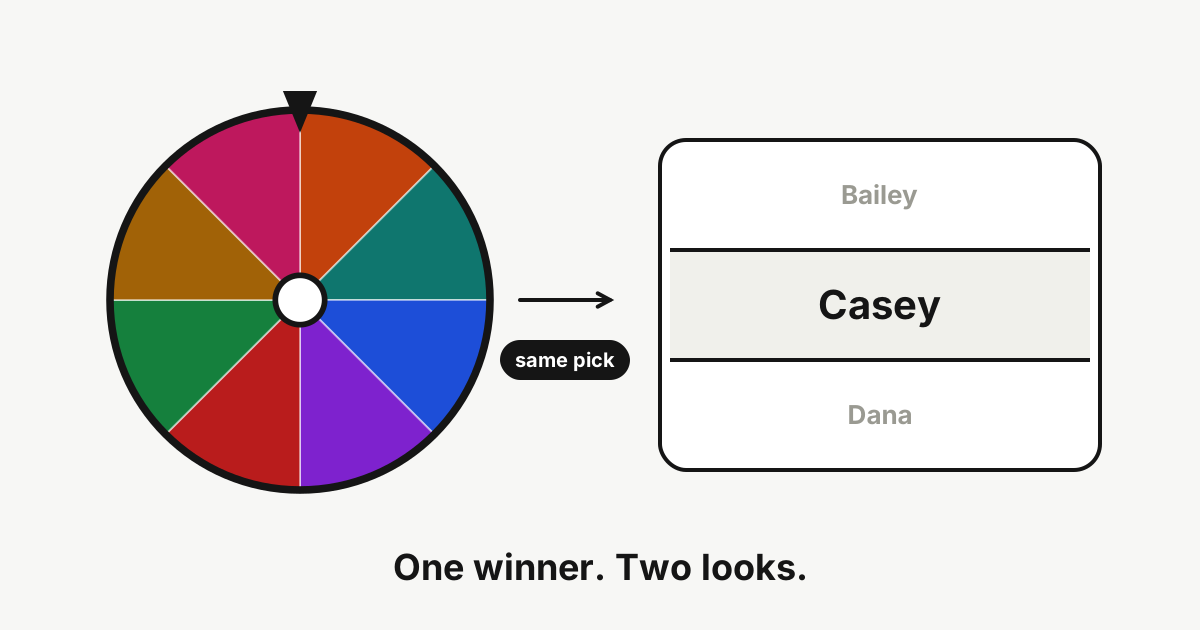
- Switch to slot mode when you want a different look for the same single winner.