A step by step guide to every part of the wheel, from adding the first name to going full screen.
Add your names
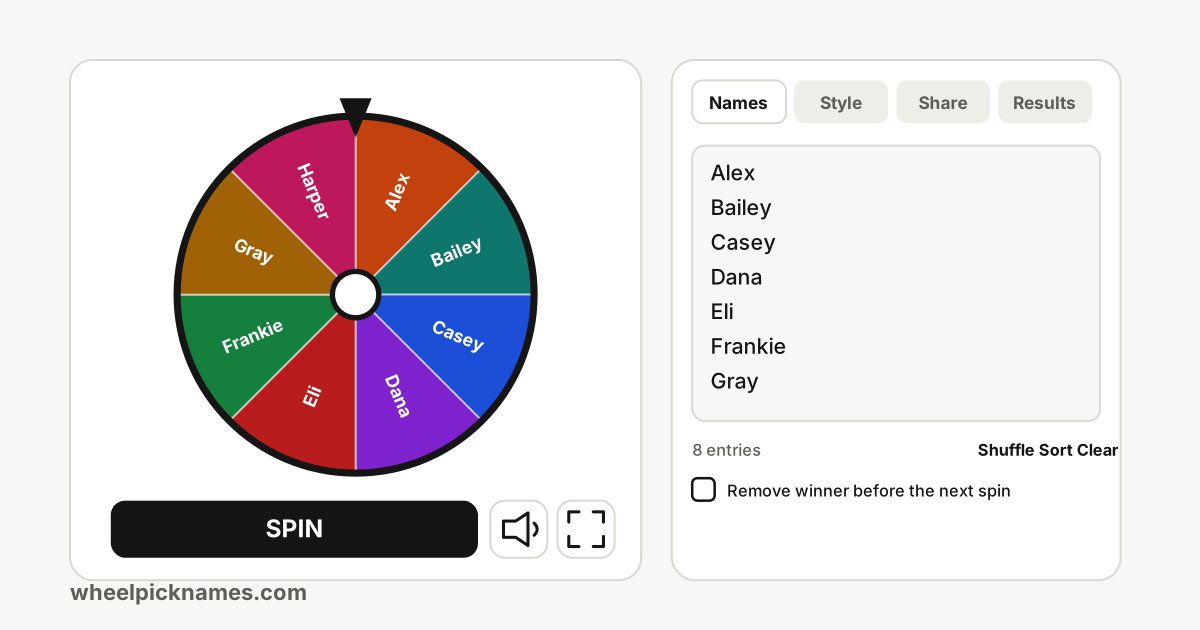
Open the spin wheel and look at the Names tab. Each line of the text box becomes one slice. Type or paste your names, one per line, and the wheel redraws as you type. Blank lines are ignored, extra spaces are tidied up, and each entry can be up to 120 characters long.
You need at least two entries to spin. The wheel holds up to 2,000 entries. Past about 60 entries the slices become too narrow for text, so the wheel shows colours only while it spins fast.
If you would rather not start from scratch, pick a ready-made template such as the yes or no wheel or the what to eat wheel. A template is just a wheel with a list already filled in, and you can edit it freely.
Spin the wheel
Press the large SPIN button, or press Ctrl and Enter together (Cmd and Enter on a Mac) from anywhere in the tool. While the wheel turns, the button fills up like a progress bar so you can see how long is left. Click the wheel itself only on an embedded wheel, where it works as a spin button too.
When the wheel stops, the winning slice stays bright while the rest is dimmed, a small burst of confetti plays, and a card slides up with the winner's name. The card has two buttons: Remove takes the winner out of the list, and Again spins straight away.
On a long list the names cannot be printed on the slices, so the wheel helps you read them. In the last two to six seconds of the spin it slows to a crawl and the view zooms in on the pointer, turning the names the right way up so you can read the ones passing by. The one that stays under the pointer is the winner, and it is highlighted while the rest dim. After a moment the view zooms back out. This is also the easiest way to see that nothing is hidden: every name really is on the wheel. You can turn the zoom off in the Style tab.
If your device is set to reduce motion, spins are short and calm, and the confetti and the zoom are skipped.
A different look for the same single winner: a reel that spins and stops on a name.
What slot mode is
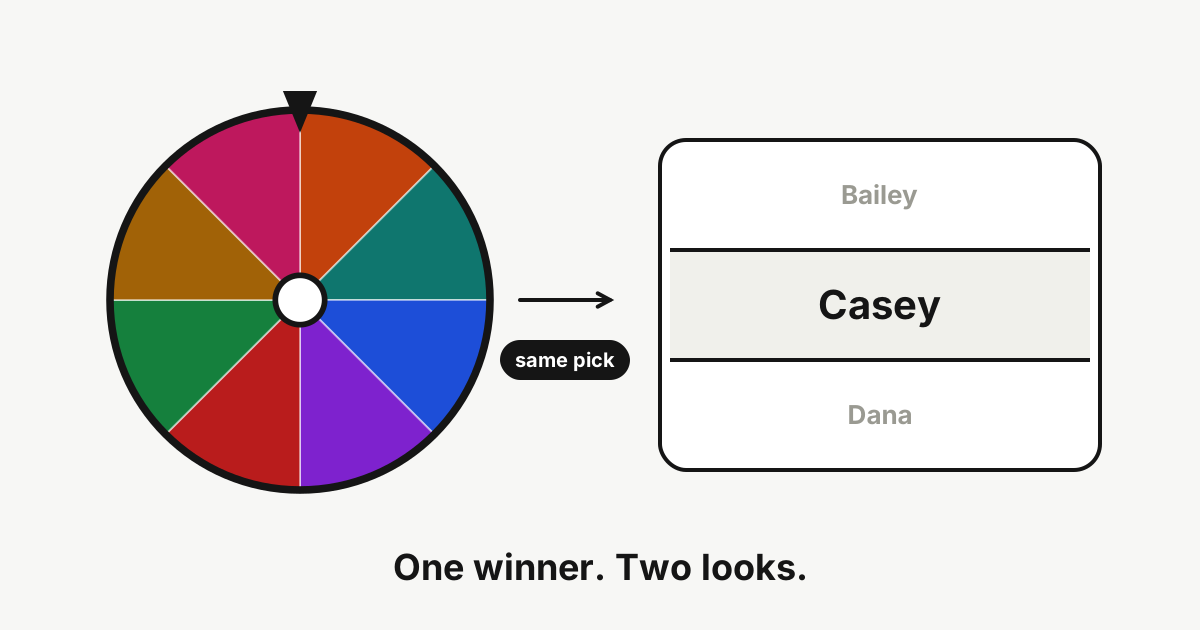
Above the tool you will find a small switch with two choices, Wheel and Slot. Slot replaces the round wheel with a single reel, like the one on a fruit machine. Names scroll past quickly, slow down, and settle on the winner in the middle row, between a line above and a line below.
It is purely a different presentation. The list, the colours, the spin time, the sound options, the confetti, the full screen view and the Remove button all work exactly as they do on the wheel.
One reel, one winner
People who know slot machines sometimes expect several reels showing several results. Here there is a single reel and a single winner. Pressing SPIN always produces exactly one name, whatever the look.
The reel does not decide anything while it moves. The winner is picked first, in the same way as on the wheel, and the reel is then animated to land on that name. The names that flash by on the way are only decoration, chosen from your list so the motion looks natural. The first and last rows around the winner are never the winner itself, so the result is easy to read.
Put the wheel on your own page, or into your stream as a browser source, in a few minutes.
Why embed a wheel
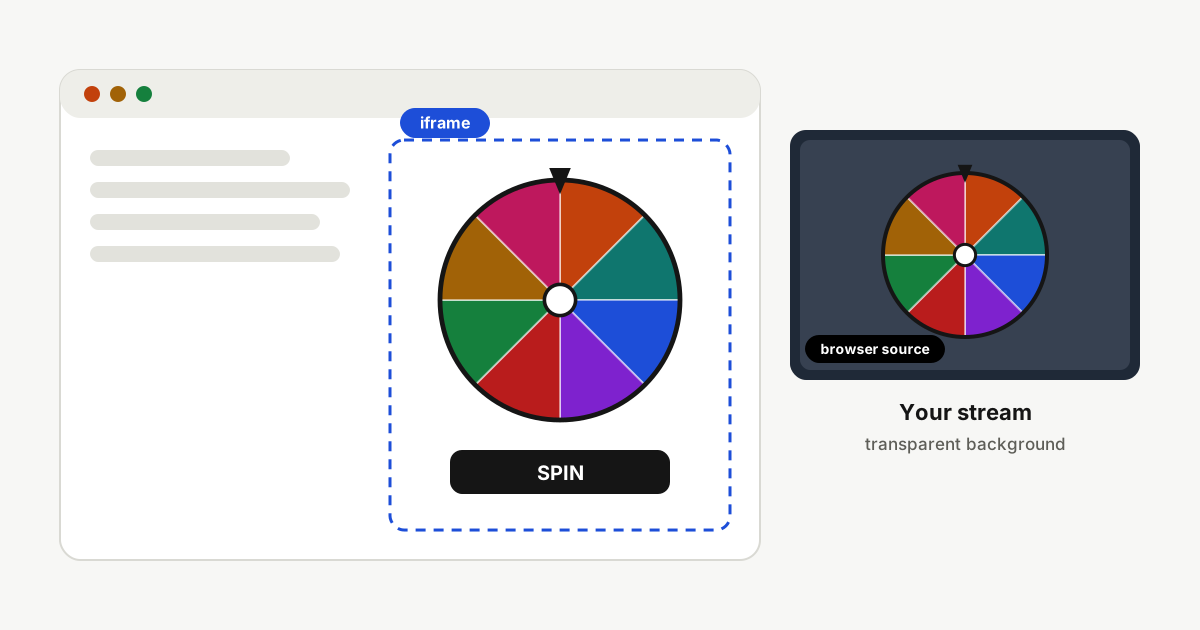
Sometimes the wheel should live where your audience already is: on a class page, a community site, a landing page for a giveaway, or on screen during a live stream. An embedded wheel keeps people on your page, shows your own list of names, and has none of the site chrome around it.
The embedded wheel has no ads. It carries one small credit line that links back here. It also never reads or writes the saved wheels of the people who use it, so a visitor's own wheel on this site is not affected. A wheel made for a quiz or a meeting, such as the icebreaker questions wheel, is a good first candidate.
Start from a blank wheel or one of the templates, and edit the names.
Choose colours and tick the options you want, then check the live preview.
Copy the embed code and paste it where your page accepts custom HTML.
If you run a prize draw, you can pair the embed with a result check: the guide to checking a wheel spin explains what viewers can check afterwards, and the verify page does the checking for them.
The code is an ordinary iframe. A size of 480 by 600 pixels shows the wheel and the spin button comfortably. If you also show the list and settings, add about 160 pixels of height. The iframe never grows wider than its container, so it fits narrow phone screens.
How a result can be checked afterwards, and what that does and does not prove.
Why people doubt wheels
Whenever a prize is at stake, someone suspects the wheel was set up. With most online wheels there is no way to tell: the page decides in private, shows an animation, and you are asked to trust it. Many sites call the alternative "provably fair". It is worth being exact about what that can mean, whether you are drawing raffle numbers on the random number wheel or picking a presenter on the who goes first wheel.
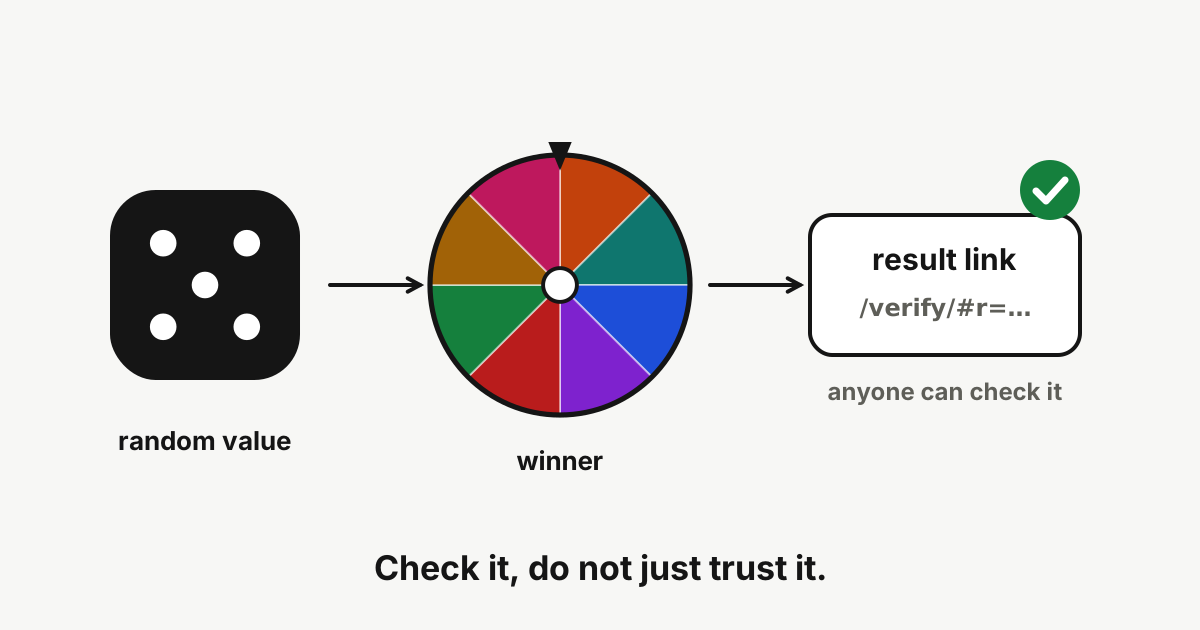
This site records everything needed to repeat the calculation of a winner, so you do not have to trust the page: anyone can recompute the result with their own tools. What that proves, and what it cannot, is described below.
The random value
Before each spin, your browser creates a random number called the seed, using the cryptographic random generator that is built into every modern browser, the same one used for encryption keys. The seed and the list are the only inputs of the calculation. A short fingerprint of each is recorded with the result.
Because the winner follows from the seed and the list by a fixed method, nothing else can change it: not the animation, not the speed of the wheel, not where the pointer happens to stop inside the slice.
A simple plan that lets your audience see, and later check, that the draw was fair.
Decide the rules first
A fair draw starts before anyone touches the wheel. Write down how people enter, when entries close, how many winners there will be, how long winners have to claim the prize, and what happens if a winner cannot be reached. Publish these rules where entrants can read them, and do not change them afterwards.
Decide the order of events as well: when the draw happens, whether it is live, and where the result will be posted. Entrants trust a draw more when the schedule is known in advance.
Build the list from the entries
Collect every valid entry and paste them into the Names tab of the wheel, one per line. Use names or entry numbers, whichever you can match to the real entrant later. Check the count shown under the text box against your records.
If some entrants earned extra chances, write them on several lines, one line per chance. A person with three chances appears three times. Save the final list in your own records, for example as a screenshot or file, because the proof will refer to exactly this text.
Where your wheel lives, what a share link contains, and how to move it to another device.
Your wheel is saved on your device
There are no accounts here. As you edit, the list, the colours, the spin time and the look are saved in your browser's own storage, so the wheel is waiting for you next time. Nothing is sent to the site's servers for this.
Every template keeps its own saved copy, separate from the main wheel, so editing the chore wheel never touches your other lists. If you clear your browser's site data, the saved wheels go with it.
Create a share link
Open the Share tab.
Press Create link.
Copy the link with the Copy button and send it by message, email or chat.
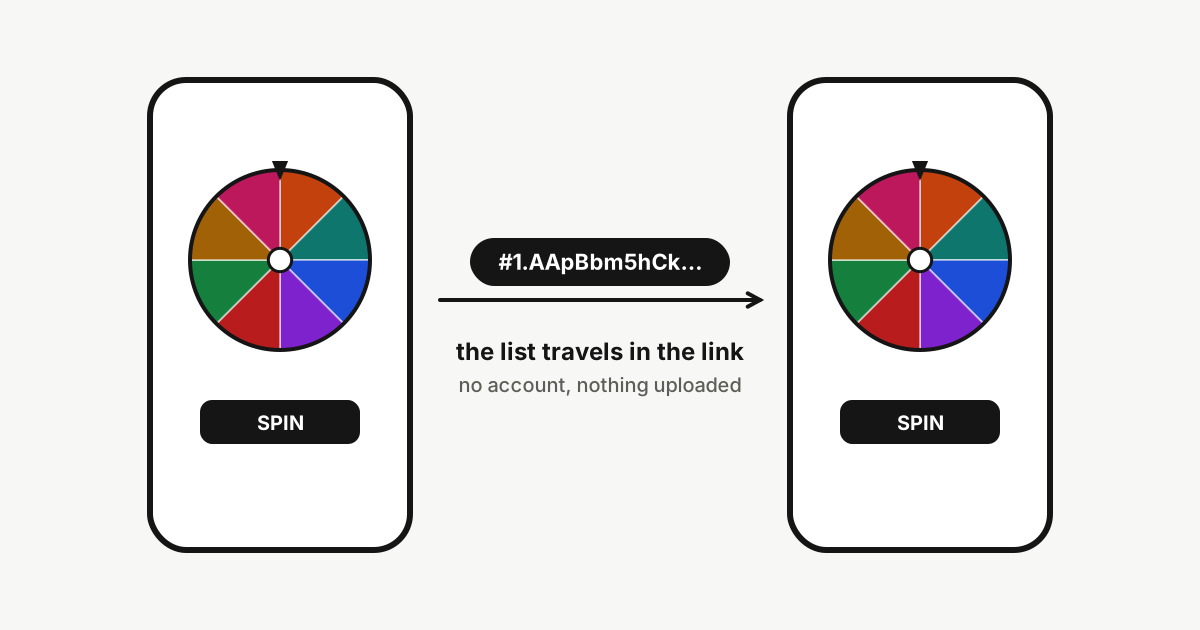
When someone opens the link, they see your list, colours, look and spin time, with a note that a shared wheel was loaded. Their own saved wheel is not overwritten until they change something, and any edit they make stays on their device and does not change your link.