Share and save a wheel without an account
Where your wheel lives, what a share link contains, and how to move it to another device.
Your wheel is saved on your device
There are no accounts here. As you edit, the list, the colours, the spin time and the look are saved in your browser's own storage, so the wheel is waiting for you next time. Nothing is sent to the site's servers for this.
Every template keeps its own saved copy, separate from the main wheel, so editing the chore wheel never touches your other lists. If you clear your browser's site data, the saved wheels go with it.
Create a share link
- Open the Share tab.
- Press Create link.
- Copy the link with the Copy button and send it by message, email or chat.
When someone opens the link, they see your list, colours, look and spin time, with a note that a shared wheel was loaded. Their own saved wheel is not overwritten until they change something, and any edit they make stays on their device and does not change your link.
What is inside the link
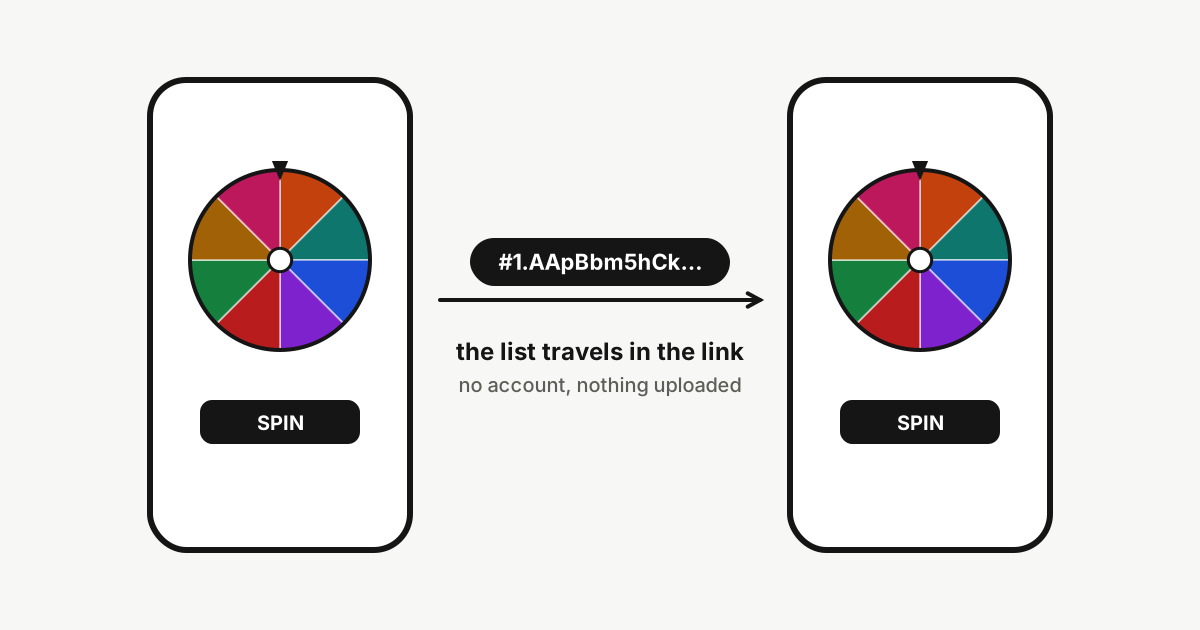
The link ends with a hash sign followed by a compressed copy of your list and settings. The part of a web address after the hash sign is never sent to a server when a page is requested, which is why this site does not receive your names. The names are readable by anyone who has the link, because the link is the list.
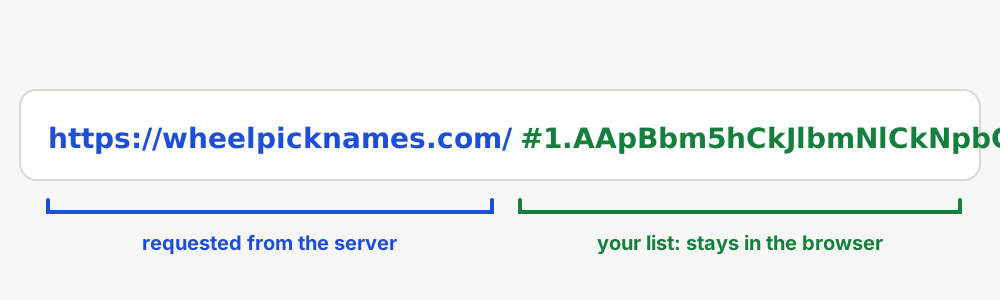
For that reason, think of a link as you would of a printed list. Share it only with the people who should see the names, and avoid putting private details into entries.
How long a link can be
A list of 100 short names fits in a link of roughly 600 to 1,100 characters, depending on how repetitive the names are. The tool warns you above 2,000 characters, because some chat apps and mail programs cut long links, and stops above 8,000 characters. If your link is long, open it once in a private window to check that it is complete before you share it.
For very long lists, send the list as a file or a text message and paste it into the Names tab on the other device. The wheel itself holds up to 2,000 entries.
Starting from a template and starting over
On a template page, the Reset button next to Shuffle and Sort restores the original list and colours. A share link made from a template page opens on the same page with your edited list, so the person sees the context of the template as well.
To start a clean wheel, press Clear in the Names tab and type a new list, or open the main spin wheel and start there.
Moving a wheel to another device
Because nothing is stored on a server, saved wheels do not travel on their own. To move a wheel, create a link on the first device and open it on the second, then make any small change, such as adding and removing a space, so the wheel is saved there too. For a live event, test the link on the device you will actually use.
Sharing with a group
When a whole household or team should see the same list, send one link and agree who owns it. If somebody edits their copy, the others do not see the change, because every copy lives on its own device. To publish an update, create a fresh link and replace the old one in the shared message.
A good habit is to put the date in the message that carries the link. People then know which version is the current one, which matters for lists that change often, such as a weekly rota.
Privacy in short
- No account and no sign-in.
- Lists are kept in your browser and travel only inside links you create yourself.
- Embedded wheels never read or write the saved wheels of visitors.
- Advertising is shown on the site, which is described in the privacy policy.