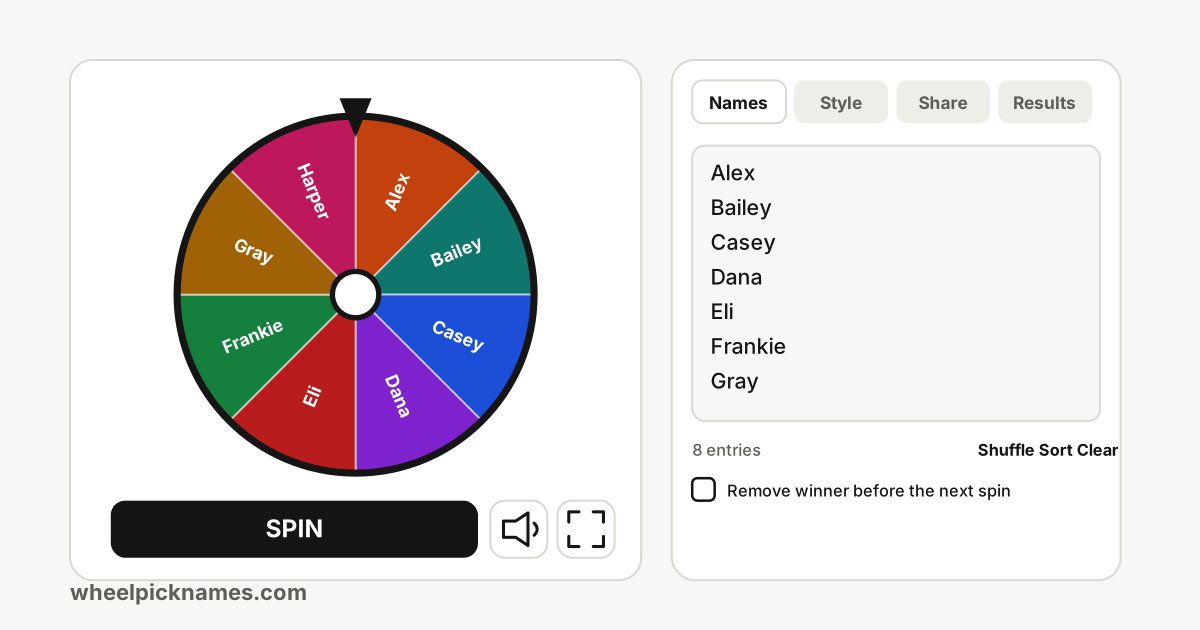
Embed the wheel on your site or stream
Put the wheel on your own page, or into your stream as a browser source, in a few minutes.
Why embed a wheel
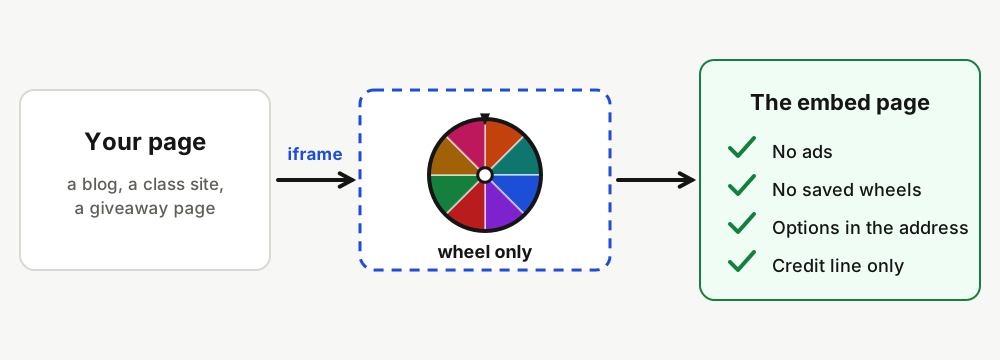
Sometimes the wheel should live where your audience already is: on a class page, a community site, a landing page for a giveaway, or on screen during a live stream. An embedded wheel keeps people on your page, shows your own list of names, and has none of the site chrome around it.
The embedded wheel has no ads. It carries one small credit line that links back here. It also never reads or writes the saved wheels of the people who use it, so a visitor's own wheel on this site is not affected. A wheel made for a quiz or a meeting, such as the icebreaker questions wheel, is a good first candidate.
Embed in a website
- Open the embed builder.
- Start from a blank wheel or one of the templates, and edit the names.
- Choose colours and tick the options you want, then check the live preview.
- Copy the embed code and paste it where your page accepts custom HTML.
If you run a prize draw, you can pair the embed with a result check: the guide to checking a wheel spin explains what viewers can check afterwards, and the verify page does the checking for them.
The code is an ordinary iframe. A size of 480 by 600 pixels shows the wheel and the spin button comfortably. If you also show the list and settings, add about 160 pixels of height. The iframe never grows wider than its container, so it fits narrow phone screens.
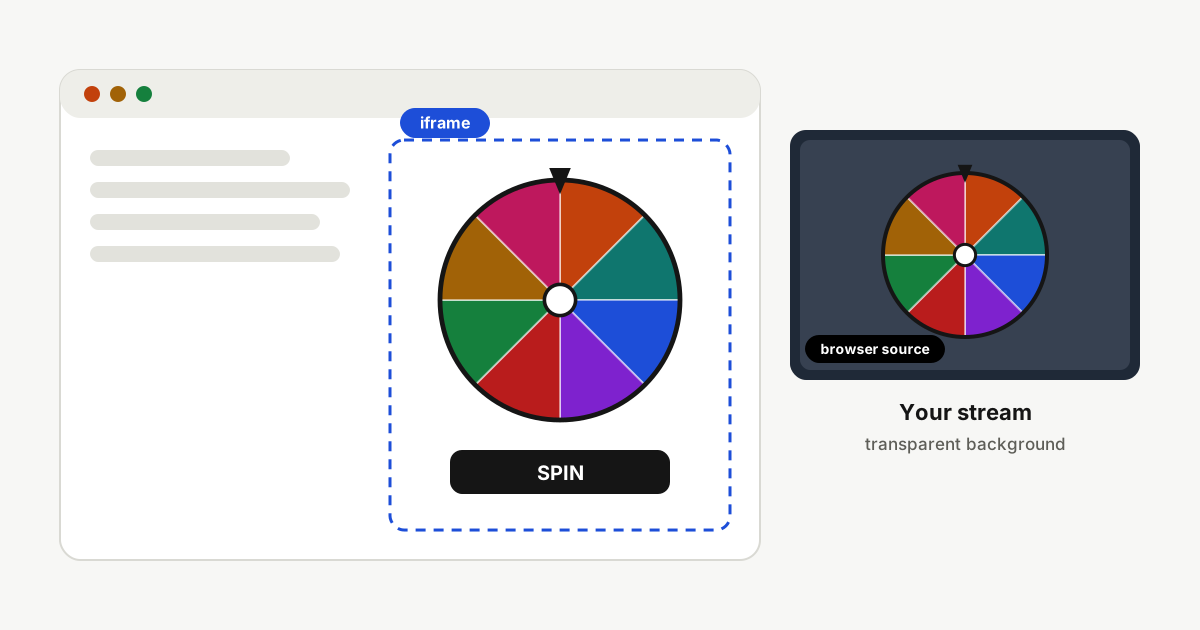
Use it as a browser source
Streaming programs such as OBS Studio can show a web page as a source. Copy the browser source URL from the builder, add a browser source in your program, paste the address, and set a width and height. Something like 600 by 700 works well. The names of the menu items differ between programs and versions, so look for the browser or web page source type.
Spin by clicking the wheel in the program's interact window, or by pressing the SPIN button. Add the sound option to the address if you want the sounds, and remember that the first click is what lets the browser start the audio.
A transparent background
Tick Transparent background and the page behind the wheel becomes see-through, so your scene or your own page shows around it. The result card keeps a solid background on purpose, because text over a busy scene would be hard to read. In the builder, a checkerboard behind the preview shows where the page is transparent.
If your streaming program cannot show transparent sources, use the full screen view of the main wheel with the green background, and remove the green with a chroma key filter. This works in almost any program.
Options in the web address
Everything the builder sets is stored in the address, so you can also write it by hand. Options come after a question mark and are joined with ampersands:
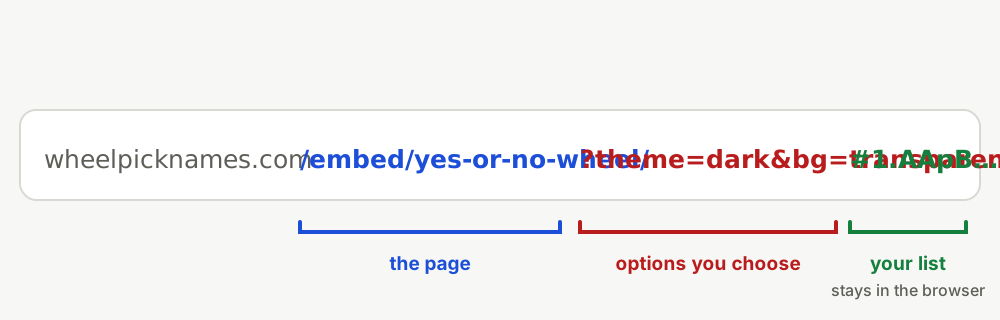
theme=darkortheme=lightchooses the look.bg=transparentmakes the page background see-through.controls=1shows the list, the settings and the Wheel/Slot switch.sound=1starts with sound switched on.names=Anna,Bence,Cilisets a short list of up to 200 names.mode=slotandduration=8set the look and the spin time.
A longer list made with the builder travels after a hash sign. When both are present, the hash wins, so the builder's list is never overwritten by an old names option.
When something looks wrong
- The background is solid, not transparent: keep the option ticked in the builder so the code includes the colour scheme setting for the iframe. Browsers can paint a solid background when an iframe's colour scheme differs from the page around it. Test in the browser you care about.
- Nothing happens on click: the wheel spins when you click the wheel or the SPIN button. Check that your page does not place another element over the iframe.
- The list is too long for a link: use a shorter list, a template, or the
namesoption for up to 200 names. - No sound: browsers only start audio after a click inside the embedded page, so press SPIN once.